Pinterest for a brand-new blog: a 30-day plan that doesn't eat your evenings
How to set up Pinterest for a blog with ten posts or fewer, from the account settings to a weekly pin routine you can keep up with.

A new blog has a lonely first few months. You publish a post you're proud of, and then nothing happens. Google takes its time to trust a fresh site, and you can't exactly ask your friends to read a guide to linen napkins every Tuesday.
That's why I treat Pinterest as part of the blog from day one, not something to "get around to later." Pinterest works more like a search engine than a social feed. People type in what they want, save ideas for later, and click through to the page behind the pin. A good pin can keep sending visitors long after you made it, which is exactly what a quiet new blog needs.
But Pinterest advice online tends to come in two flavours: "pin 25 times a day" or a 40-step course on the algorithm. Neither fits a life with a day job or a toddler. So here is the plan I'd hand a friend who just launched her blog: 30 days, four weeks, and a weekly routine that fits into one sitting.
Before you start: what Pinterest can and can't do for a new blog
Let's set expectations first, because this is where most people give up.
Pinterest does not promise a timeline. Its own help pages say a pin can take off right away or pick up engagement months later, and that older pins can suddenly start getting traction again. That's good news and bad news. Good, because your work keeps paying off. Bad, because the first month can feel like shouting into a quiet room.
What Pinterest rewards, according to its own guidance, is relevance and consistency: pins whose image, text and keywords match the page they link to, created regularly over time. So the goal for your first 30 days isn't traffic. It's to set the account up properly and build a habit you can still keep in month six.
Week 1: set up the account properly
This week is all settings and no pins. It's a little boring, and it makes everything after it work better.
1. Switch to a free business account. You can convert a personal account or start a new one. A business account gives you Pinterest's analytics, and you need it to use Pinterest Trends, the free keyword tool we'll use in week 2.
2. Fill in your profile like a mini homepage. Use your blog's name, a clear photo or logo, and a one-line bio that says who the blog is for, written with the words people would search. "Cozy home ideas for small apartments" is more findable than "Living my best life."
3. Claim your website. Claiming connects your profile to your site, so pins saved from your blog carry your name and profile picture, and you can see how often your content is shared. Pinterest offers a few ways to verify: an HTML tag in the head of your site, an HTML file uploaded to the root folder, or a DNS TXT record. If your site was built with Claude like mine, the HTML tag is the easiest: copy the tag Pinterest gives you and ask Claude to add it to the head of every page. Then go back to Pinterest and click Verify.
4. Add your website link to your profile. It's a small thing, and it gives anyone who finds you a way back to the blog.
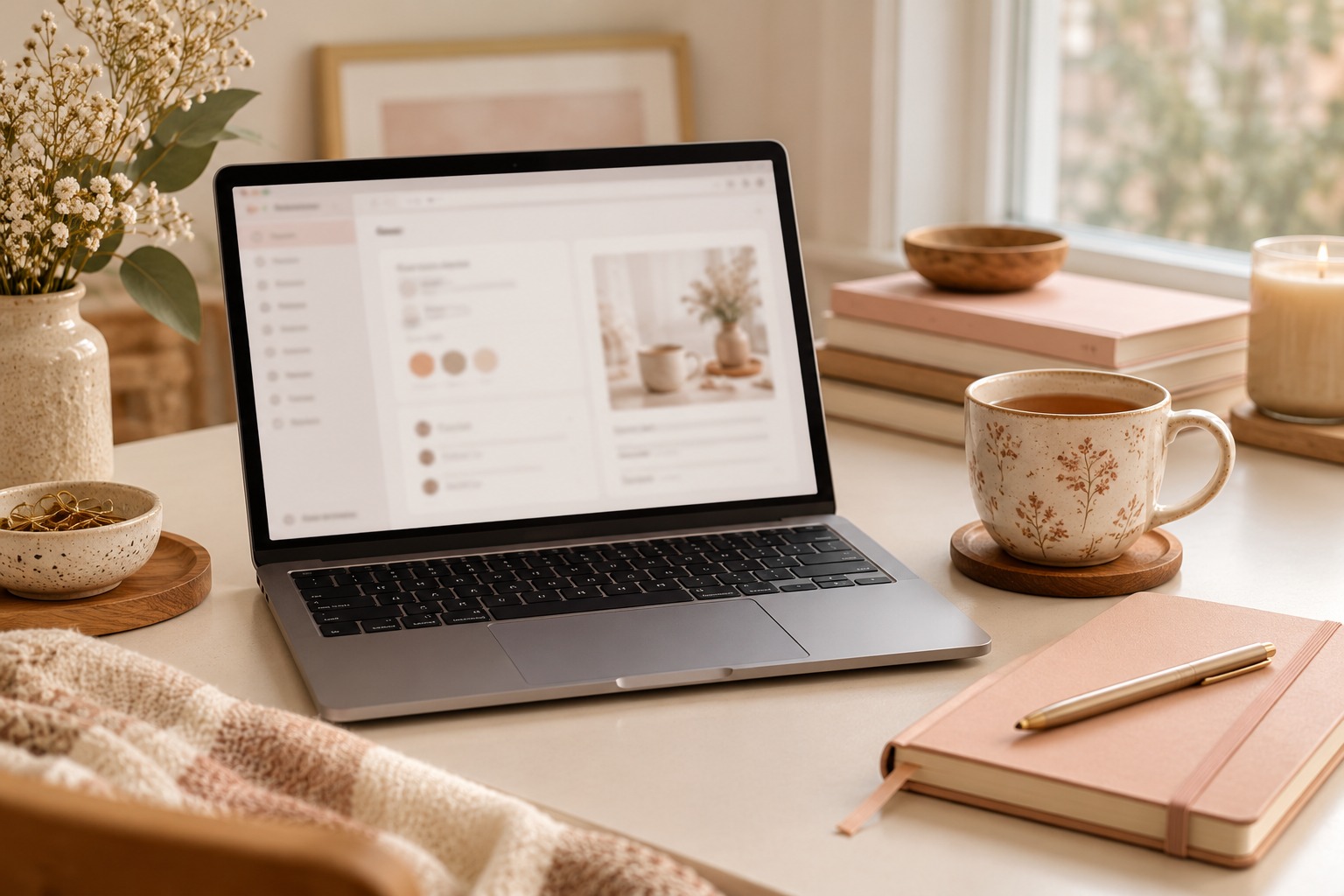
Week 2: pick your keywords and build your boards
Boards are how Pinterest understands what your account is about, so this is the week to be boring on purpose. Clever board names like "Little Joys" tell Pinterest nothing. "Small Apartment Decor Ideas" tells it everything.
Here's how I'd do it:
- List your blog's 4 to 6 main topics. For a home blog, that might be living room decor, kitchen organization, cozy fall decor, hosting and small space ideas.
- Check each topic in Pinterest Trends. It runs in a browser (not the app) and shows how searches for a keyword rise and fall over the last two years, whether it's seasonal, and what's growing. Use it to choose between two phrasings, or to spot that "fall porch decor" peaks well before fall actually starts.
- Type each topic into the Pinterest search bar and note the suggestions that drop down. Those are phrases real people search.
- Create one board per topic, named with the plain keyword phrase, plus a short description of a sentence or two using that keyword and one or two related ones.
- Add a few pins to each board, your own and some good ones from others in your niche, so the boards don't look empty when people land on them.
Five to eight focused boards is plenty for a new blog. You can always add more as your posts grow.
Week 3: make fresh pins for every post
Pinterest's own advice is to create original content regularly, ideally every week. In practice that means fresh pins: new images or new designs, not the same pin saved again and again.
For every blog post, I'd make three to five different pins that all link to the same post. Each one takes a slightly different angle, so they reach slightly different searches. Here's the mix I like:
| Pin type | What it looks like | Good for |
|---|---|---|
| The title pin | The post photo with the post title on top | Every post, made first |
| The list pin | "7 easy ways to..." with a short list | Roundups and how-to posts |
| The checklist pin | A simple checklist people want to save | Planning and setup posts |
| The before and after pin | Two photos side by side | Home, organizing, design |
| The quote pin | One strong line from the post on a soft background | Mindset or story posts |
A few design rules that save time in Canva:
- Use a tall pin. I design mine at 1000 x 1500 pixels, the familiar 2:3 shape that fills the screen on a phone.
- Make the text big enough to read on a phone, and keep it away from the very edges. Pinterest's pin specs list safe zones to keep text and key details visible.
- Match the pin to the page. If the pin promises "10 cozy reading nook ideas", the post should have ten cozy reading nooks. Pinterest says relevance between the image, text, keywords and landing page affects how a pin is shown, and readers bounce fast when it doesn't match.
- Make one template and reuse it. Two fonts, your three colours, your blog address at the bottom. After that, each new pin is a matter of swapping the photo and the words.
A note on AI images: Pinterest labels images it detects as AI generated or AI modified, and it has said it will let people choose to see fewer AI pins in some categories. I make my blog photos with AI, so I keep them realistic and useful rather than fantastical, and I make sure the post behind the pin is genuinely helpful. A beautiful pin that leads to a thin page doesn't help anyone.
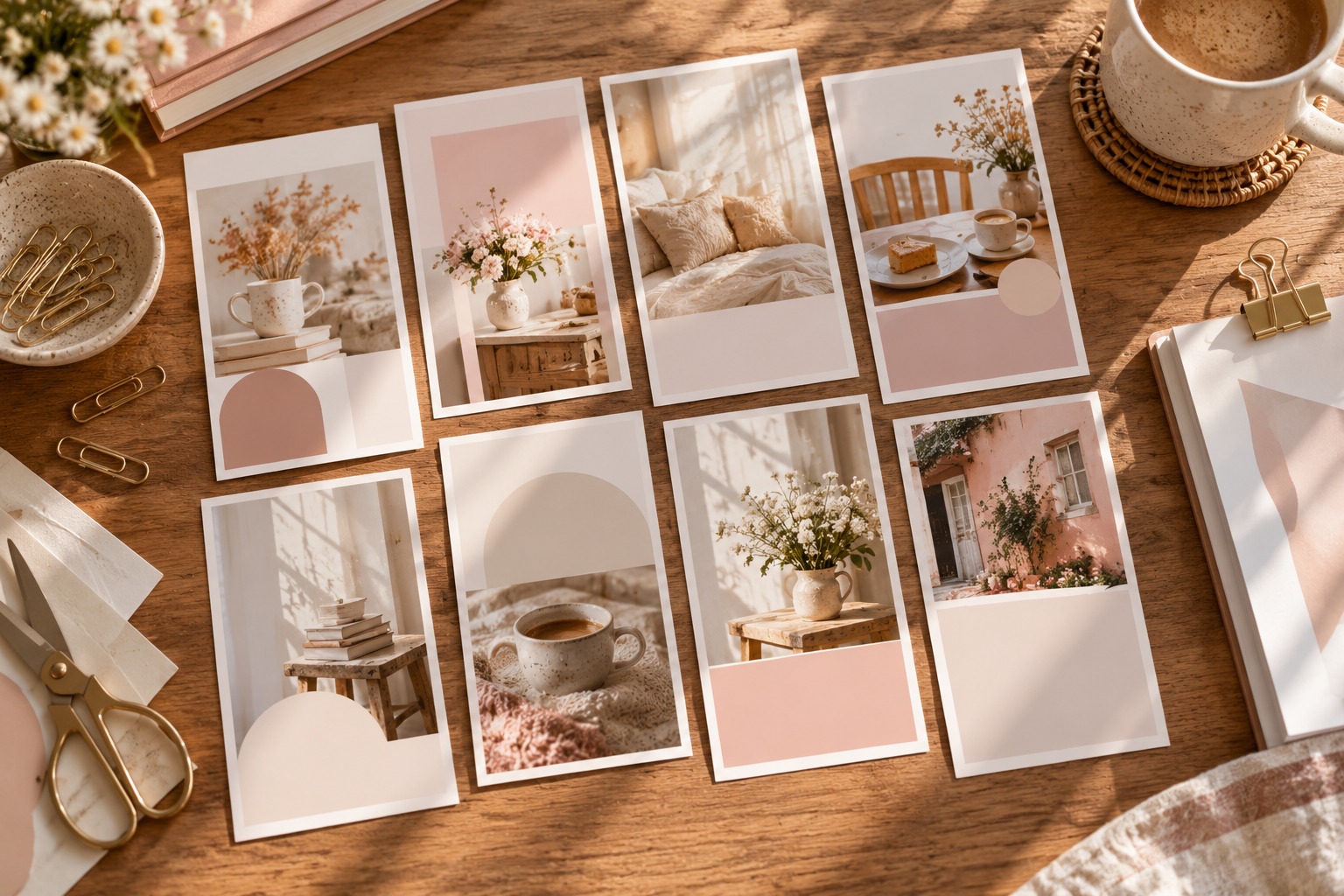
Week 4: write titles and descriptions with AI (then fix them)
This is where AI saves the most time. Writing five pin titles and five descriptions for every post gets old fast, and it's exactly the kind of structured writing Claude or ChatGPT does well, as long as you give it the right brief.
Pinterest allows pin titles up to 100 characters and descriptions up to 800. Descriptions don't show in the home feed, but they still help Pinterest understand your pin, so they're worth writing properly. Here's a prompt you can copy:
You are helping me write Pinterest pins for a blog post.

Blog post title: [paste title]
Blog post link: [paste link]
Who it's for: [e.g. busy moms decorating small apartments]
Main keyword: [e.g. small living room ideas]
Related keywords: [2 or 3 phrases from Pinterest search suggestions]

Write 5 pins for this post. For each pin give:
1. An angle (list, checklist, before and after, quote or title pin)
2. A pin title under 100 characters, clear and specific, using a keyword naturally
3. A short text overlay for the pin image, 8 words or fewer
4. A pin description of 2 or 3 sentences that says what the reader will get from the post and uses 2 or 3 of the keywords naturally

Rules: no hashtags, no clickbait, no promises the post doesn't keep, and every pin must match what's actually in the post.
Then read every line before you use it. AI loves the word "ultimate" and will happily promise "20 ideas" in a post that has twelve. You know your post. It doesn't, unless you paste it in.
Your weekly Pinterest routine (one sitting)
Once the setup weeks are done, Pinterest becomes a single weekly session. Here's the routine I'd aim for:
- Run the prompt above for your newest post and edit the results
- Make 3 to 5 pins in Canva from your template
- Schedule them across the coming days rather than all at once (Pinterest lets you schedule pins up to two weeks ahead)
- Spread them across your most relevant boards
- Make one fresh pin for an older post that still deserves attention
- Glance at your analytics once a month, not every day, and note which pin styles get saved
That's it. No daily pinning marathons. The trick is that the routine is small enough to survive a sick kid or a busy week at work.
Where this fits in an automated blog
On my own blogs, Pinterest is built into the system rather than bolted on. Each post comes with a pin title and description already drafted, the photos are made to work as tall pins, and I design the pins in Canva once the post is ready. The writing gets automated. The judgment, like which pin to make and whether it matches the post, stays with me.
If you want to see how the whole blog side of that works, I wrote about how I set up a blog that writes itself (and why I still edit every post).
And if you'd like to build one yourself, my course Make Money with an Automated Affiliate Blog walks you through it in 14 chapters, from choosing your niche to SEO and Pinterest, with a hands-on exercise in every chapter. It's $27 at launch until 26 October 2026, then $37.
The Saturday Build
One new build log a week, plus the prompts and tools behind it. No hype, no get-rich-quick promises.
Thank you, you're on the list.
Sorry, that didn't go through. Please try again in a minute.
Keep reading
Etsy or your own storefront? Where to sell your first digital product
An honest side-by-side of Etsy and a link-in-bio shop like Beacons: the real fees, who brings the buyers, and a five-question way to choose.

The truth about "passive income" from blogging, and what mine really takes each week
It's not 100% passive, it's not fast, and I still love it. Here's the honest version, hour by hour.
How I set up a blog that writes itself (and why I still edit every post)
The exact system behind my twice-weekly home and lifestyle blog, from the scheduled AI task to the moment a post goes live.